Find Professional Help for Custom Websites
How to Install Node.js and NPM on Mac
The Node.js Install Guide for Mac
Node.js is a open source, JavaScript environment for running web applications on the server (outside the client's browser).
Node Package Manager (NPM) is an online library of hundreds of thousands of pre-built JavaScript projects that you can use as tools for building and running your own custom JavaScript (Node.js) web application on a server.
In this guide, you learn how to install and/or update Node.js and NPM on a Mac computer.
Node Package Manager (NPM) is an online library of hundreds of thousands of pre-built JavaScript projects that you can use as tools for building and running your own custom JavaScript (Node.js) web application on a server.
In this guide, you learn how to install and/or update Node.js and NPM on a Mac computer.
-
From your browser (chrome, Safari, Edges), navigate to the Node.js download site.
Click the Mac Installer button (maybe the second tab) to download the latest LTS version.
At this time, the latest LTS version is 18.12.1-x64.. The Node.js installer includes the NPM package manager. -
- On the Node.js download link, you will see two version, one of which is LTS (long time support) and the other is current (latest) version.
Click and/or download the LTS version and not the current version!
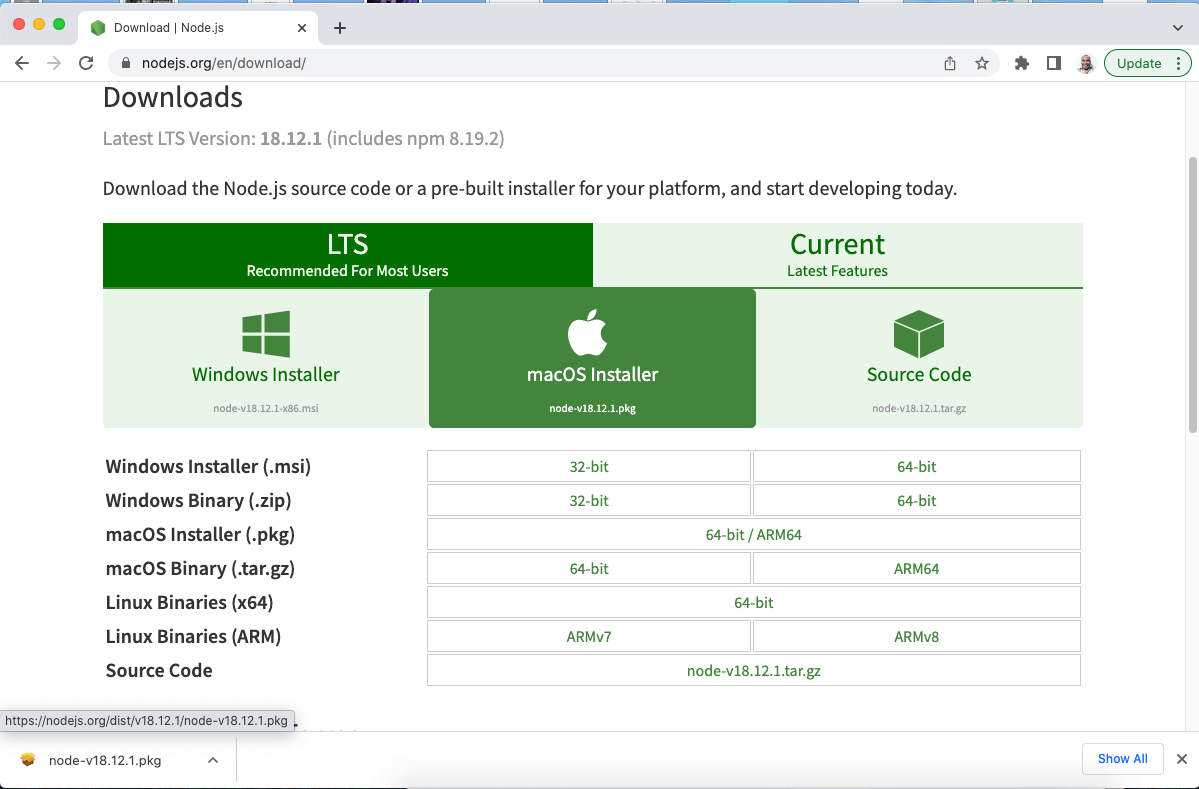
- The Node.js file with a file named like node-v18.12.1.pkg (where v18.12.1 is the LTS version number) will download to your Mac.
-
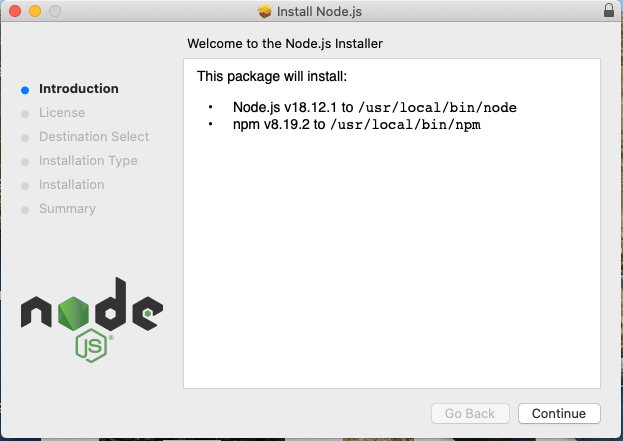
Find and double-click the downloaded Node.js file on your Mac.
This will start / launch the Node.js installation wizard and from there all you need is to keep accepting the default options on each screen - Click continue on the Introduction screen
- Click Continue & Agree on the License screen
- Click Continue on the Destination Select screen
- Click Install on the Installation Type screen screen
- On the Installation screen, you may be prompted for the system password.
Enter your Mac's system password if you're prompted for it - On the last / summary screen, you maybe notified that Node.js has installed successfully
-
-
Open your Mac terminal and enter the following to display the Node version:
node -v -
Open your Mac terminal and enter the following to display the NPM version:
npm -v
- On the Node.js download link, you will see two version, one of which is LTS (long time support) and the other is current (latest) version.