Find Professional Help for Custom Websites
How to Install Node.js and NPM on Windows
The Node.js Install Guide for Windows
Node.js is a open source, JavaScript environment for running web applications on the server (outside the client's browser).
Node Package Manager (NPM) is an online library of hundreds of thousands of JavaScript projects or tools for building and running JavaScript (Node.js) apps on the server.
In this guide, you learn how to install and/or update Node.js and NPM on a Windows computer.
Node Package Manager (NPM) is an online library of hundreds of thousands of JavaScript projects or tools for building and running JavaScript (Node.js) apps on the server.
In this guide, you learn how to install and/or update Node.js and NPM on a Windows computer.
-
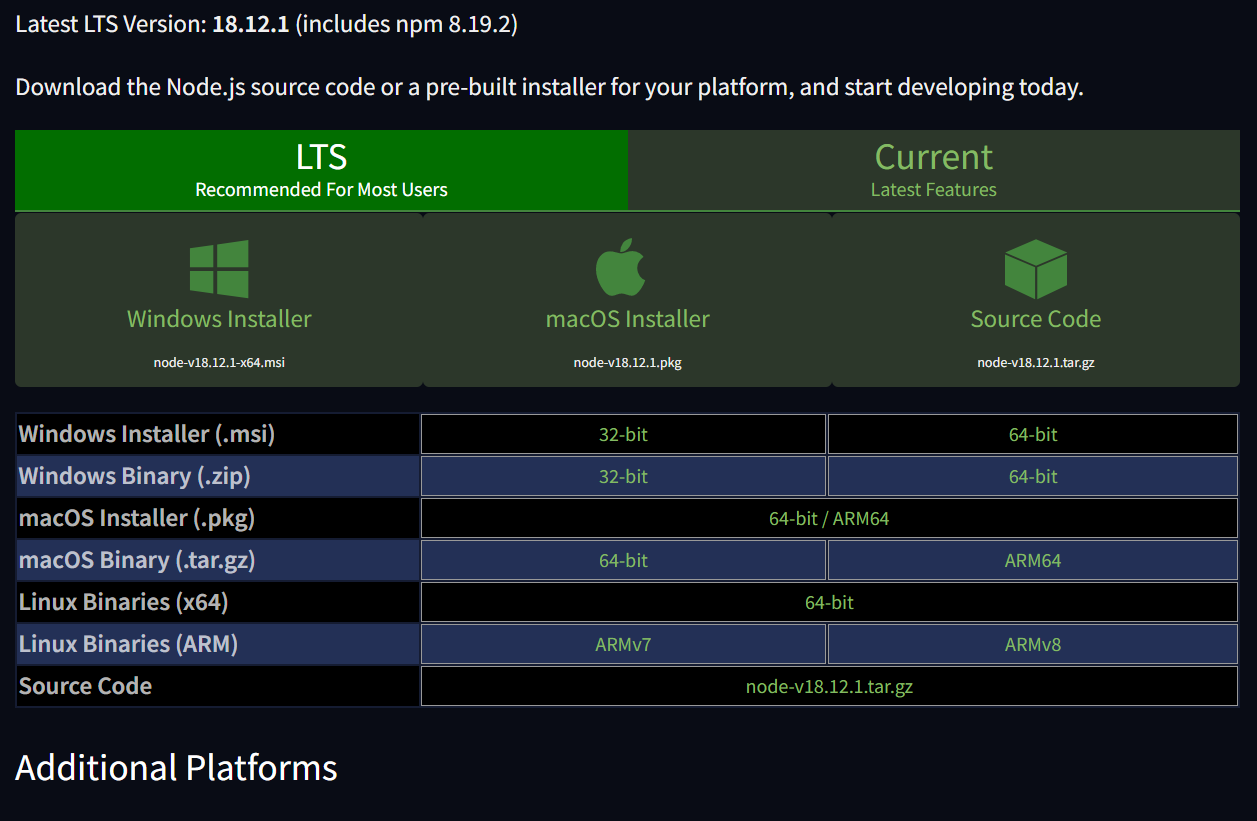
From your browser (chrome, Safari, Edges), navigate to the Node.js download site.
You will see two versions, one of which is the LTS (long time support) and the other is the current (latest) version.
-
Click the Windows Installer button (maybe the first tab) and download the LTS version and not the current version!
At this time, the latest LTS version is 18.12.1-x64.
Note that the Node.js installer also includes the NPM package manager. -
- Once the Node.js latest LTS finishes downloading, open the downloads link in your browser and click the file.
Or browse to the location where you saved the downloaded file and double-click it to launch.
On a Windows machine, the file would be saved to the downloads folder with a name like node-v18.12.1-x64.msi. Where v18.12.1 is the version number of the LTS you downloaded -
- The system will prompt about running the download - click Run.
- Click on the downloaded Node.js file and you will be presented with the Node.js Setup Wizard - click Next.
- On the next screen, review the license agreement. Click Next if you agree to the terms and install the software.
- The installer will prompt you for the installation location. Leave the default location, unless you have a specific need to install it somewhere else - then click Next.
- The wizard will let you select components to include or remove from the installation. Again, unless you have a specific need, accept the defaults by clicking Next.
- Finally, click the Install button to run the installer. When it finishes, click Finish.
-
Open the command prompt, PowerShell or terminal and enter the following to display the Node version:
node -v -
Open the command prompt, PowerShell or terminal and enter the following to display the NPM version:
npm -v